Microsoft Project Setup
Set up Microsoft Project 2024 Standard with confidence.
A simple, start-to-finish guide for downloading, installing and activating Project Standard LTSC on your Windows PC.

Five minutes of prep makes the install smoother.
Save your work, check that you have your product key, and remove any older Project installation before downloading the new package.
A Windows PC
Windows 10 or 11 with administrator access.
Your product key
Keep your key-delivery email within reach.
Enough free space
Allow room for the download and installation.
Apps closed
Save your work and close open Office apps.
Open Windows Settings → Apps → Installed apps, find Microsoft Project and uninstall it. Restart your PC if Windows asks you to.
Four clear steps. You’ve got this.
Work through each step in order and mark it complete as you go. Your progress stays visible beside the guide.
Remove any existing Project installation.
Save your work and close Microsoft apps. Then uninstall any earlier version of Microsoft Project so it cannot conflict with the new installation.
- 1 Open Windows Settings and select Apps.
- 2 Choose Installed apps and search for Microsoft Project.
- 3 Select Uninstall, follow the prompts, then restart if requested.
Download the Project 2024 Standard package.
Download the ZIP package to your Downloads folder. It contains both the 32-bit and 64-bit installation folders.
Project_2024_Standard_LTSC.zip 32 & 64-bit included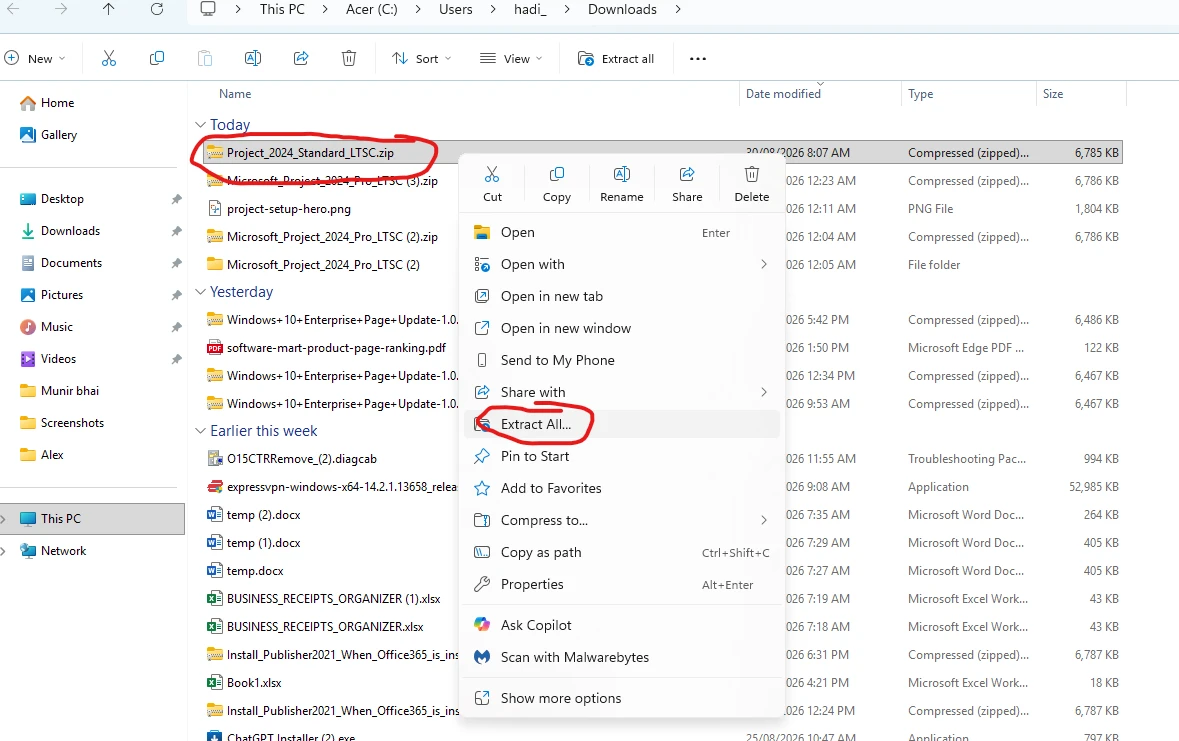
Extract the ZIP, then run the installer.
Right-click the downloaded ZIP file, choose Extract All and open the extracted folder. Then select the folder that matches your Windows system type.
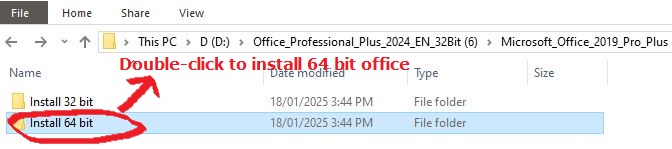
Choose your system type
Double-click the 32 or 64-bit installation folder inside the extracted package.
Double-click start.bat and leave the window open until installation finishes.

Enter your product key and verify activation.
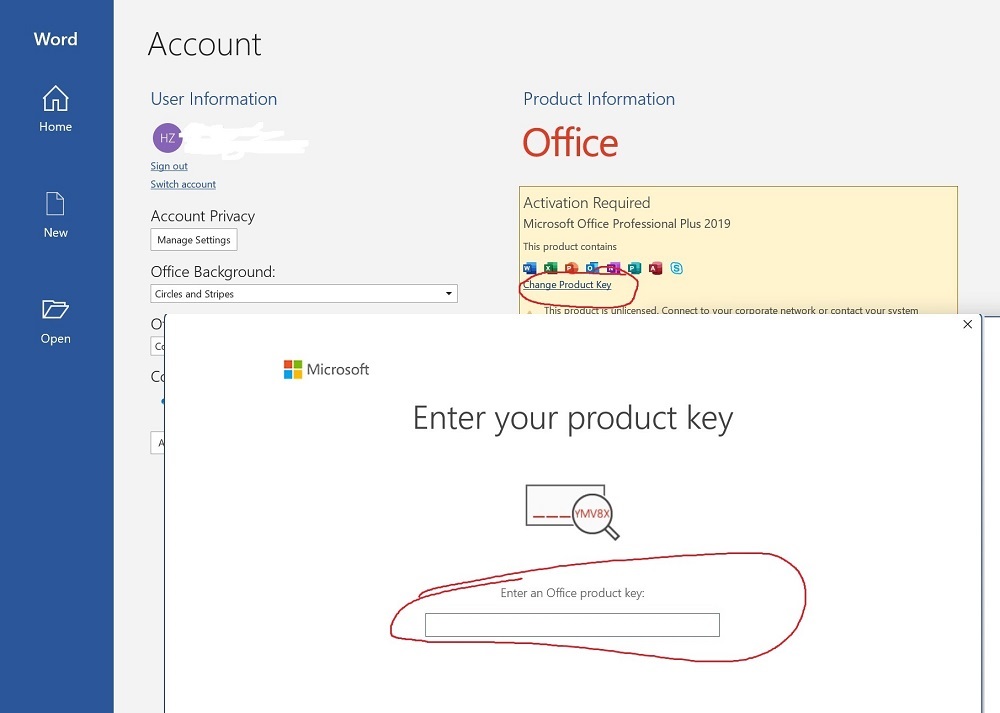
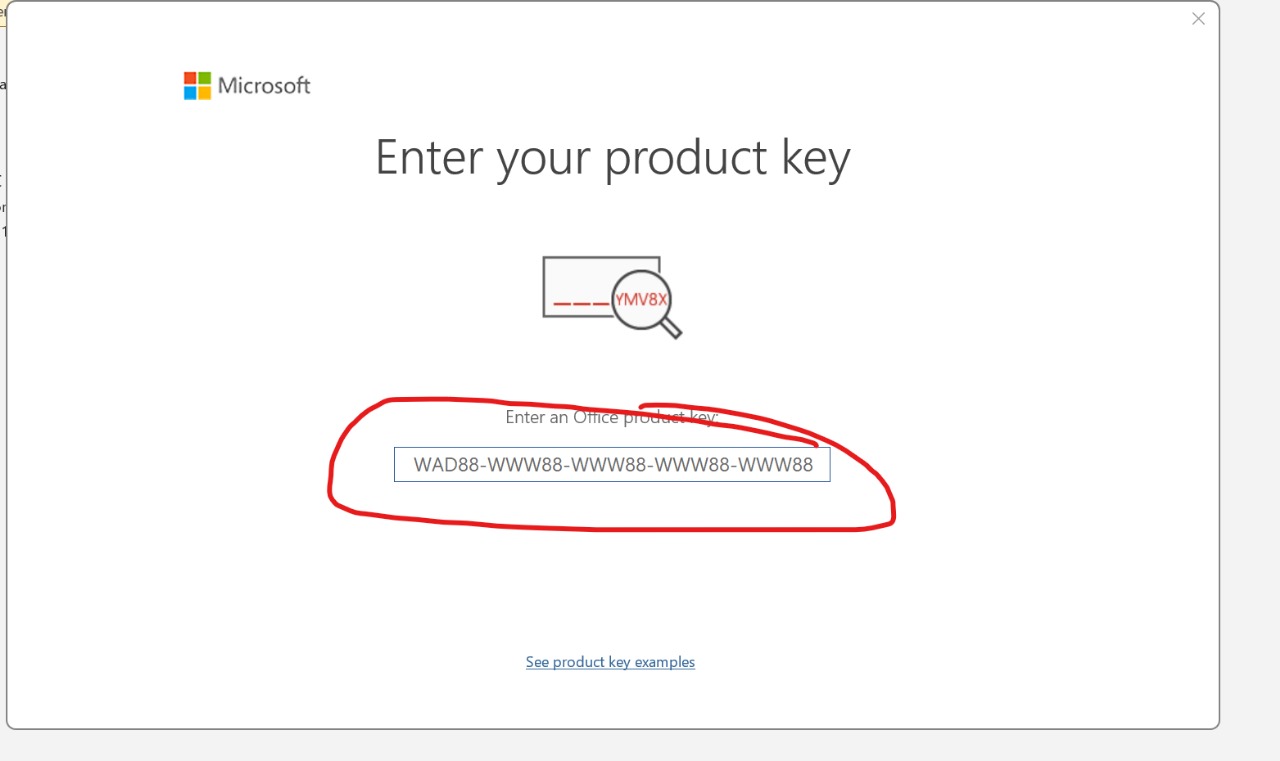
Open Project—or another Microsoft Office app—then go to File → Account. Choose Change Product Key and enter the key from your delivery email.
Copy the key from your delivery email.
Paste it into Change Product Key.
Reopen the app and verify activation.
Download once, follow the steps, and get back to planning.
The Standard LTSC package includes both system types, and the guide stays here whenever you need to check the next step.
A few useful answers before you begin.
Quick guidance for the questions that most often come up during installation and activation.
Do I need to uninstall an older version of Project first?
Yes. Remove any existing Microsoft Project installation before you begin. Older Project files can conflict with the new LTSC installation. You do not need to remove your other Office apps unless your licence provider has told you to.
Should I choose the 32-bit or 64-bit folder?
Choose 64-bit for most modern Windows PCs. Use 32-bit only if Windows or an important add-in specifically requires it. If you are unsure, open Settings → System → About and check System type.
Where do I find my product key?
Use the product key from the key-delivery email you received with your purchase. Keep that email open on another device or copy the key before starting activation.
What if activation does not appear immediately?
Close Project, reopen it and check File → Account again. Confirm the key was entered exactly, your internet is working, and Windows has the correct date and time. Restarting can also complete pending changes.
All done. Restart your PC, then open Project and start planning.