-
Step 1: Uninstall your old office from your MAC
- Open Finder > Applications.
- Command +click to select all of the Office for Mac applications.
- Ctrl+click an application you selected and click Move to Trash.
Source screenshot unavailable. View the original image reference
- If you need more information please visit this below link
-
Step 2: Sign in to download Office
-
Go to https://setup.office.com and Click "Sign In" if you already have a Microsoft Account or "Create a New Account" if you do not have any Microsoft Account
Source screenshot unavailable. View the original image reference
Source screenshot unavailable. View the original image reference
Source screenshot unavailable. View the original image reference
Source screenshot unavailable. View the original image reference
-
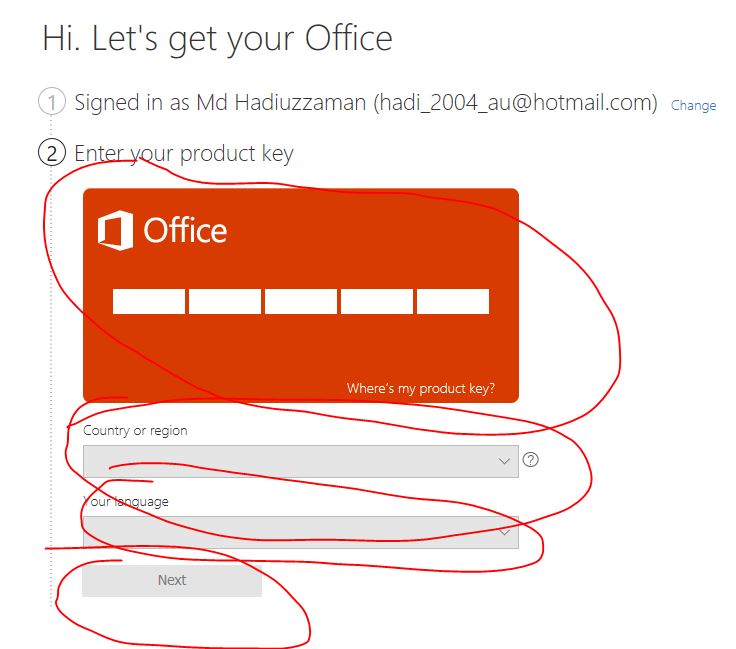
Step 3: Enter your product KEY, select your country and language and click "NEXT"
Source screenshot unavailable. View the original image reference
-
Step 4: Install Office
- Depending on your browser, select Run (in Edge or Internet Explorer), Setup (in Chrome), or Save File (in Firefox).
- If you see the User Account Control prompt that says, Do you want to allow this app to make changes to your device? select Yes.
- The install begins.
Source screenshot unavailable. View the original image reference



- Your install is finished when you see the phrase, "You're all set! Office is installed now" and an animation plays to show you where to find Office applications on your computer. Select Close.
- Follow the instructions in the window to find your Office apps. For example depending on your version of Windows, select Start and then scroll to find the app you want to open such as Excel or Word, or type the name of the app in the search box.
Source screenshot unavailable. View the original image reference
-
Step 5: Activate Office
-
Go to this link: Click here

Re-Installation:
-
- Visit: https://account.microsoft.com/services
- Enter the same login that you download and activate the key for the first time
- Locate “Install” link next to office 2016/2019 home and business
- Download the and install it again
- Open MS Word if asked supply the same login
- Restart your PC / MAC
Source screenshot unavailable. View the original image reference
