Outlook Setup
Step 1:
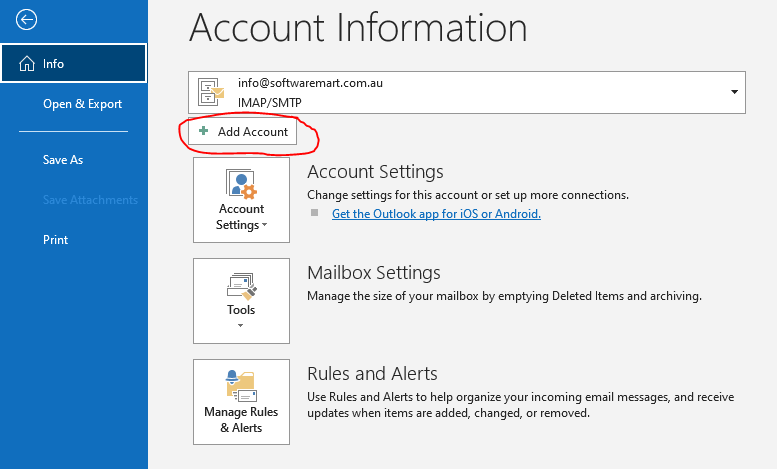
Open outlook --> click File --> click “Add account”
Step 2:
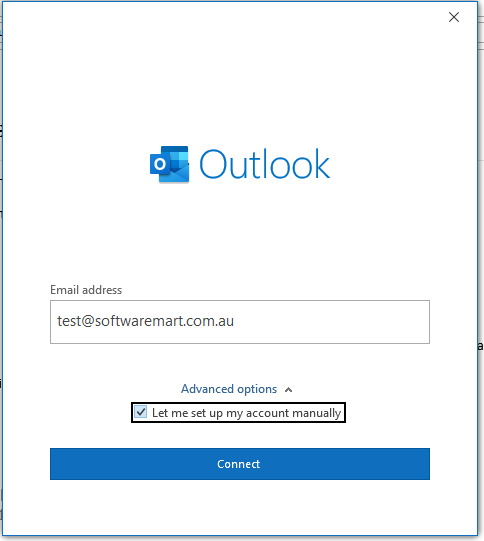
Enter your email --> click “Advanced options” and check "Let me set up my account manually" --> click connect
Step 3:
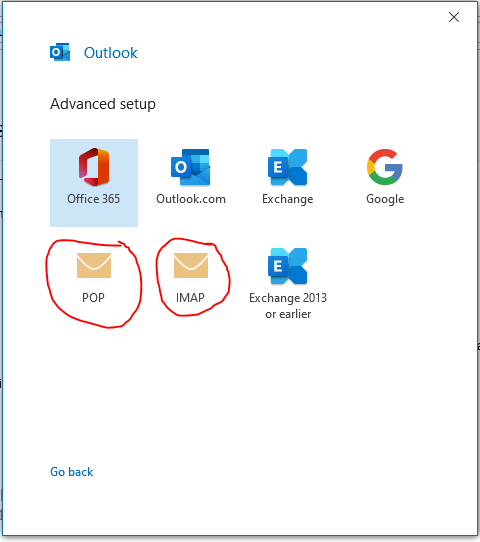
Select POP or IMAP
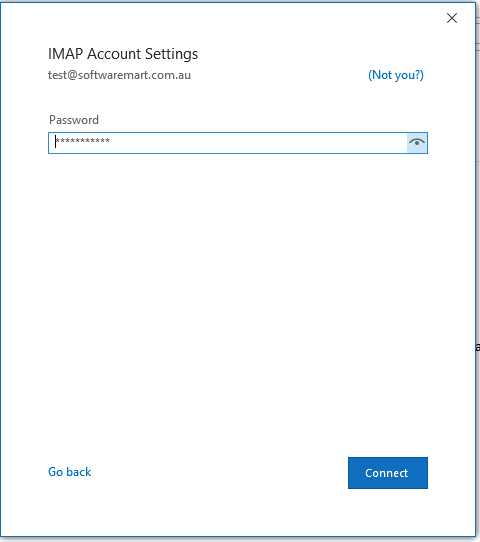
Step 4:
Enter your password
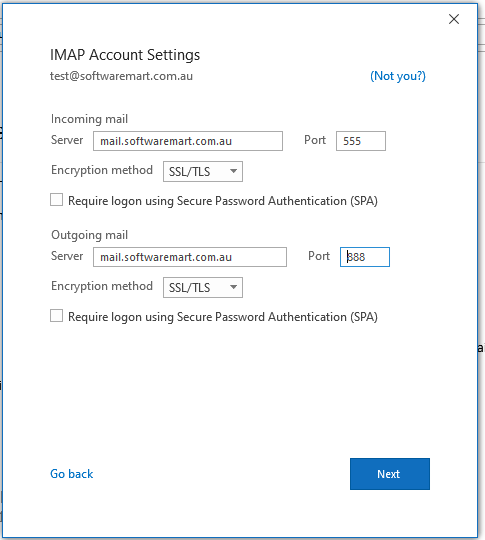
Step 4:
Enter your Incoming & outgoing mail server address, Port, and Encryption Method (You must get this value from your email provider) and click Next.
Tips: you can also search in google/ Bing, for example, “tpg email settings” most large organizations publish these details on their website however small companies may not have this facility and you must contact them and collect these details.
Note: you must enter the corresponding port number if you select the Encryption method to SSL / TLS.