 Buy a Genuine Microsoft Windows 10 Key
Steps
-
Create bootable devices such as USB or DVD (Blank and Approx. 8 GB or more space required) or if you already have a bootable USB or DVD of Windows 10
- Visit this Microsoft Official site and do these steps
- https://www.microsoft.com/en-au/software-download/windows10
Source screenshot unavailable. View the original image reference
- Click the Download tool now button.
- Double-click the MediaCreationTool.exe file to launch
- Click the Yes / Accept button to agree to the terms.
- Select the Create installation media (USB flash drive, DVD, or ISO file) for another PC.
Source screenshot unavailable. View the original image reference
Source screenshot unavailable. View the original image reference
Source screenshot unavailable. View the original image reference
-
Check your BIOS boot Sequence and change if necessary
- In order to boot from your USB or DVD that you have just created, you need to change the BIOS boot sequence. To enter your BIOS setting please hit one of these keystrokes from the keyboard: DELETE, ESC, F1, F2, F3, F10, or F12 as soon as your device start
- (!!! IMPORTANT NOTE: Sometimes brand company alter these settings so please search in google / bing which exact keystroke is required for your particular machine.!!!)
- To navigate different menu items in BIOS setting use your keystroke suggested
- Your created boot device such as USB or DVD must be pushed to the top. For example, if you created bootable USB then “Removeable Devices” must be pushed to top likewise, if you created DVD then “DVD-ROM Drive” must be pushed to the top and finally save your setting with the keystroke F10.
Source screenshot unavailable. View the original image reference
Source screenshot unavailable. View the original image reference
- Press F10 to save and exit
-
Install your windows 10 Now
- After changing boot sequence press F10 to save the settings and restart your device. Press the ENTER keystroke immediately from keyboard when you see it start booting from the device and ask you to continue with that
- Please accept the terms and delete or create or format partition as necessary
Source screenshot unavailable. View the original image reference
Source screenshot unavailable. View the original image reference
- Click "I Don't have product key"
Source screenshot unavailable. View the original image reference
Source screenshot unavailable. View the original image reference
Source screenshot unavailable. View the original image reference
- Delete, create or format partition if necessary.
Source screenshot unavailable. View the original image reference
Source screenshot unavailable. View the original image reference
- Follow the prompt to finalize the installation
-
Activate your windows 10 Now
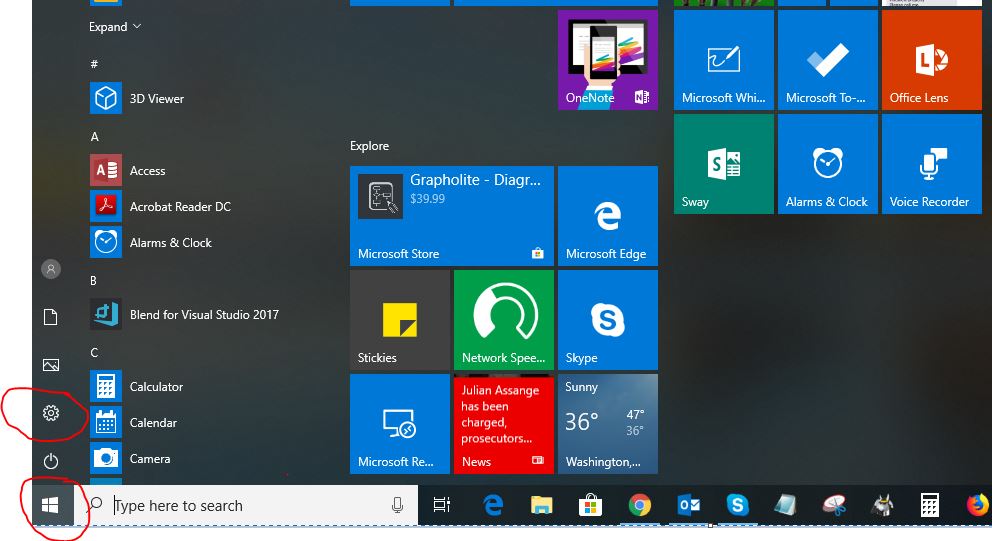
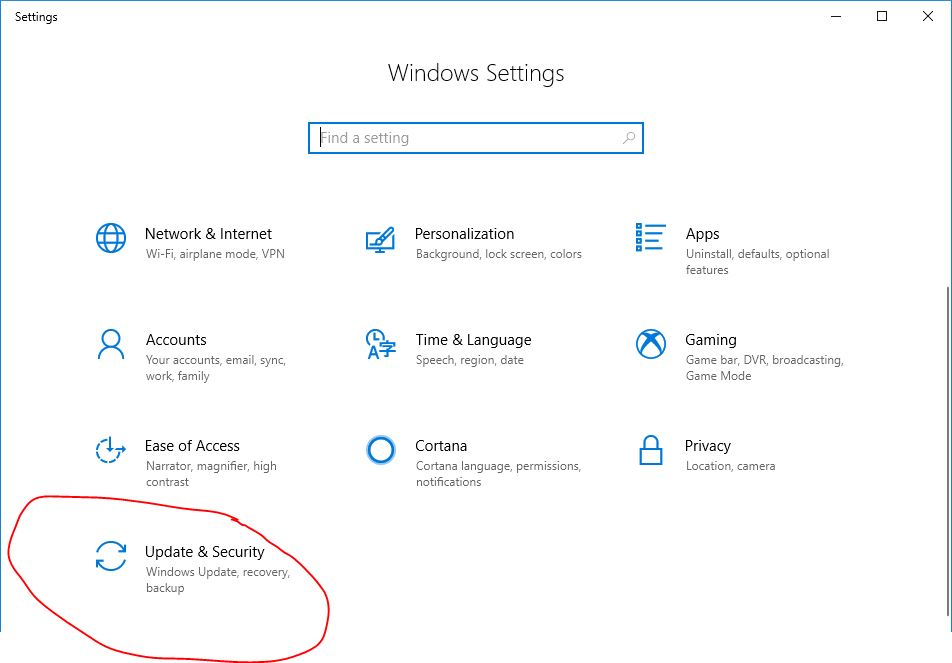
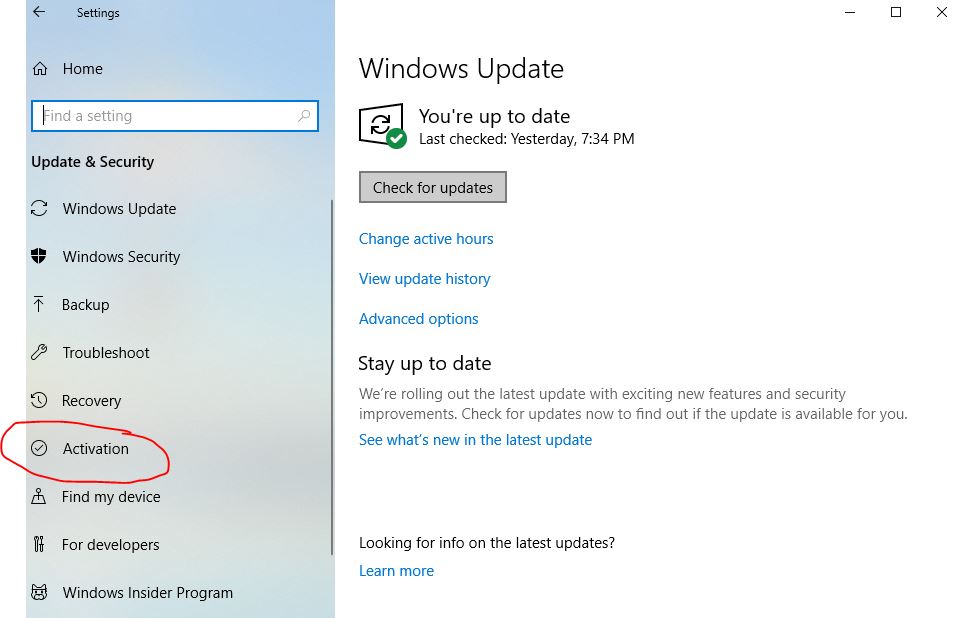
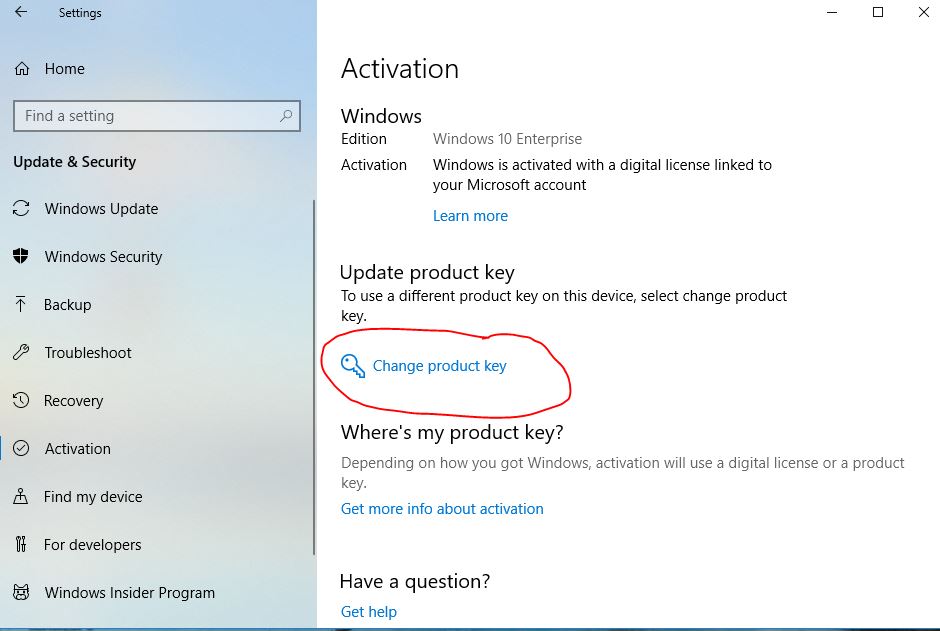
To Activate: Start - Setting - Update & Security - Activation - Change Product Key
-
Step 1: Click Windows Start Button then => Click Settings
Source screenshot unavailable. View the original image reference
-
Step 2: Scroll bit down if needed and then Click "Update & Security"
Source screenshot unavailable. View the original image reference
-
Step 3: Click "Activation"
Source screenshot unavailable. View the original image reference
-
Step 4: Click "Change Product Key"
Source screenshot unavailable. View the original image reference
-
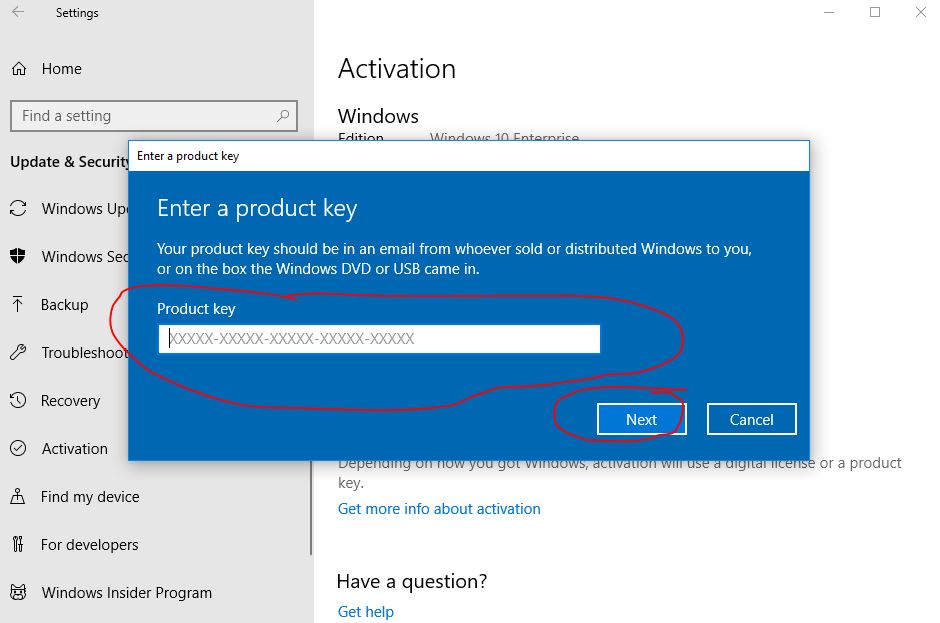
Step 5: Enter your 25 digits Key and Click "NEXT"
Source screenshot unavailable. View the original image reference
- Follow the prompt to finalize the update
-